
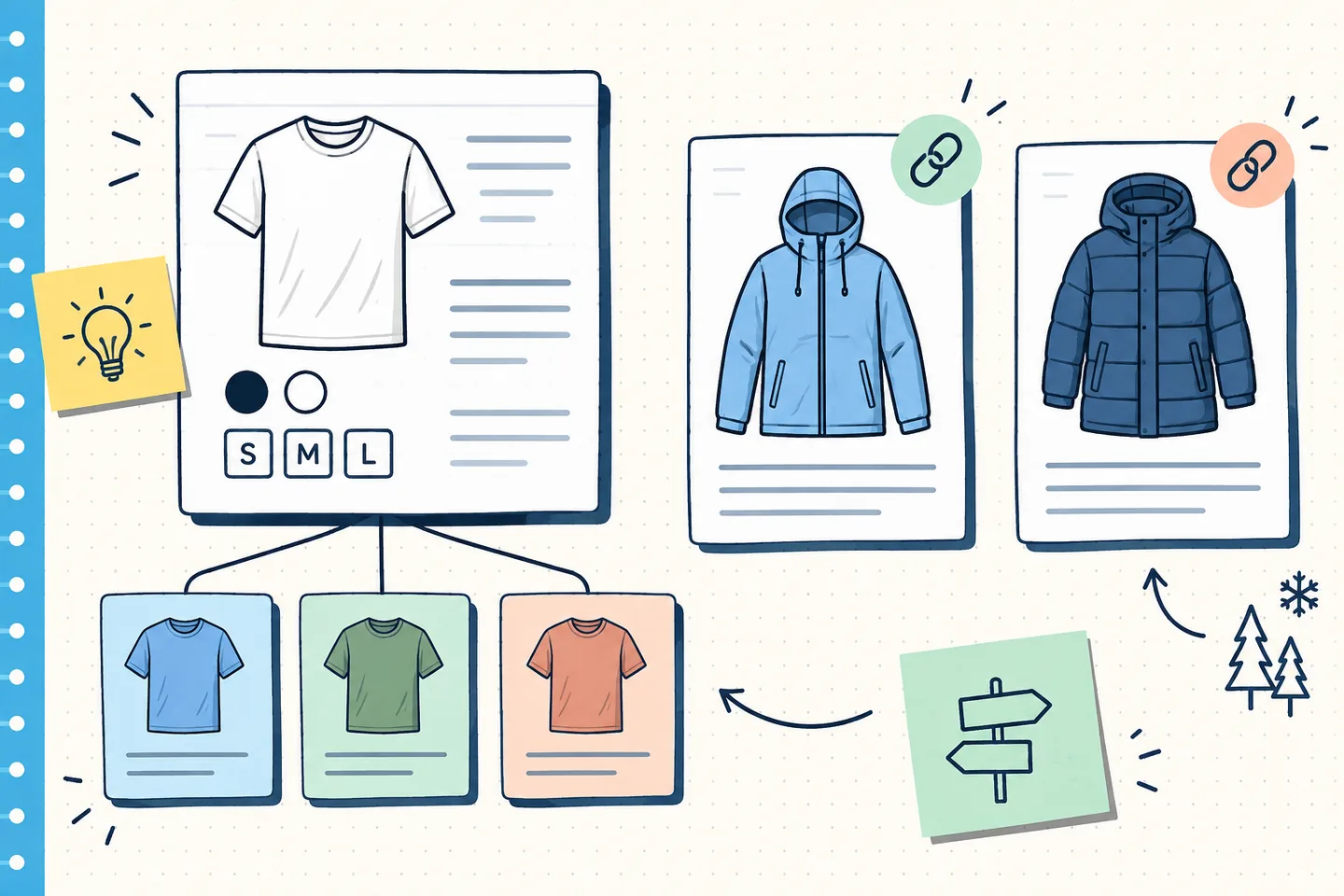
Should every colour and size in a WooCommerce catalogue have its own product page? Start with what a buyer needs to decide. If the choices are versions of the same item, one parent page can explain the product while a selector handles the options. If they serve different purposes and need different buying advice, separate pages may be clearer.
Make that catalogue decision before working on canonical tags or structured data. A direct link must open the option a buyer expects, and the page must describe it accurately.
Start with the buyer’s task
Consider a cotton T-shirt offered in black and white, each in several sizes. Its fit, fabric and care instructions remain much the same. A buyer can choose a colour and size on one page without reading a description for every combination. WooCommerce variable products support variation-level prices, stock settings and images within one parent product. WooCommerce’s variable product guide explains those variation-level controls.
Now consider two jackets under the same collection name: a lightweight rain shell and an insulated winter coat. Buyers need different information about warmth, weather protection and intended use. A variation selector could obscure that choice. Separate pages let buyers compare their features and category pages link to each jacket directly.
A shared brand or design does not settle the question. Ask whether a buyer arriving at an option would need substantially different information to judge it. A new size seldom changes the answer; different construction or function may. A simple colour choice often fits one page, while a finish with distinct care requirements might deserve its own.
One page can still give every variation a shareable URL
One parent page can still have a shareable URL for each exact option. Suppose the T-shirt is at /product/cotton-tee/. A link to black in medium might be /product/cotton-tee/?color=black&size=medium. Opening it should preselect that combination, show its image, price and availability, and allow the buyer to add it to the cart. The parameter names are illustrative; use those your storefront recognises.
That is a direct link to a variation, not necessarily a separate page for search indexing. It can be useful in an email or product feed, provided it works independently. Google asks for a distinct URL for each variant and for the selected image, price, availability and purchase option to match it. Its product variant documentation sets out those direct-link requirements.
Test the link in a fresh browser session and after reloading. If it opens on white or asks the buyer to select the size again, it has failed its purpose. Themes, swatch extensions, caching and scripts can affect the result, so check the actual storefront.
To check how a link is made, choose a variation on the product page and watch the address bar. If the selection changes but the URL does not, copying the address may give someone only the unselected parent. Paste the proposed link into a private browser window rather than testing solely in a session that remembers earlier choices. Check an available option and an unavailable one; the page should not invite a buyer to add an out-of-stock combination to the cart. Repeat after any change to the theme, variation plugin or caching rules.
Keep the canonical signal aligned with the page design
For the single-page T-shirt, the parent URL without optional colour and size parameters normally represents the product group. Variation URLs remain useful entry points, while the parent is canonical. Google's ecommerce URL guidance recommends omitting optional variant parameters from that canonical and keeping internal links, sitemaps and canonical tags consistent. Google explains these URL and canonical signals in its ecommerce guidance.
The rain shell and insulated coat have different uses and substantive content. If each page is intended for indexing, give each a self-referencing canonical and include its URL consistently in internal links and the sitemap.
Variants can also occupy separate, substantial pages while remaining in one product group. Google's multipage variant model has no single canonical URL for the whole ProductGroup. Each page needs self-contained information about the variants it presents. This takes more care than giving every swatch a new path; use it when separate pages can stand on their own.
Match ProductGroup data to what the shopper sees
On a single T-shirt page, ProductGroup data can describe the common product, with colour and size as the properties that vary and individual Product entries for the combinations. The group and variants need identifiers; variant URLs should point to selectable options. Google documents variesBy and hasVariant for expressing that relationship in its ProductGroup guidance.
Check the data against the page, not just a validation result. If the selector offers black in medium but its variation URL opens white in large, the data and buying experience disagree. If an option is unavailable, its displayed state and variation information should agree. Inventory settings can hide sold-out options, so inspect the storefront.
For the rain shell and insulated coat, use separate product descriptions and markup if they are genuinely separate products. A shared collection name alone is not a reason to group them as variants.
A practical variation decision tree
- Is the core product and buying task the same? If yes, begin with one parent page and variation selectors. If the items need different explanations to support a purchase, begin with separate product pages.
- Can a buyer share an exact option? Give each selectable combination a stable URL that opens with the right option preselected. A fragment such as #black does not distinguish a variant URL for Google. Its URL guidance gives path and query-parameter examples for variants.
- Which URL should represent the content in search? On a single shared page, use the parent as the product-group canonical. For genuinely independent product pages, use a consistent self-referencing canonical on each indexable page. If you choose a multipage variant model, make every page useful and check its signals individually.
- Does the structured data reflect that choice? Group actual variations and give them distinct identifiers and working URLs. Keep separate products separate. Check that visible selection, images, availability, and data describe the same item.
- Would the proposed extra page help a buyer? If its only unique content is a color word in the title, a preselected URL on the parent is likely more useful. If it answers distinct questions with specific content, a separate page has a clearer purpose.
Verify the URLs after they are live
Open the parent URL, an ordinary variation URL and any separate page intended for indexing. Check the title, selected attributes, image, availability, cart choice and canonical tag. Inspect rendered HTML if scripts alter the selection or markup. A direct link that works only after someone first visits the parent needs fixing.
In Search Console, compare the user-declared canonical with Google's selected canonical in indexed data. Use the live test to inspect the current page after a change. Indexed data records what Google processed earlier; the live test checks the page now and cannot predict Google's eventual canonical choice. If Google selected an unexpected URL, compare the page content, canonical tags, internal links and sitemap entries before changing the page model. A working direct link or valid ProductGroup data does not guarantee that every option will be indexed. Google’s URL Inspection help explains both views and their limits.