
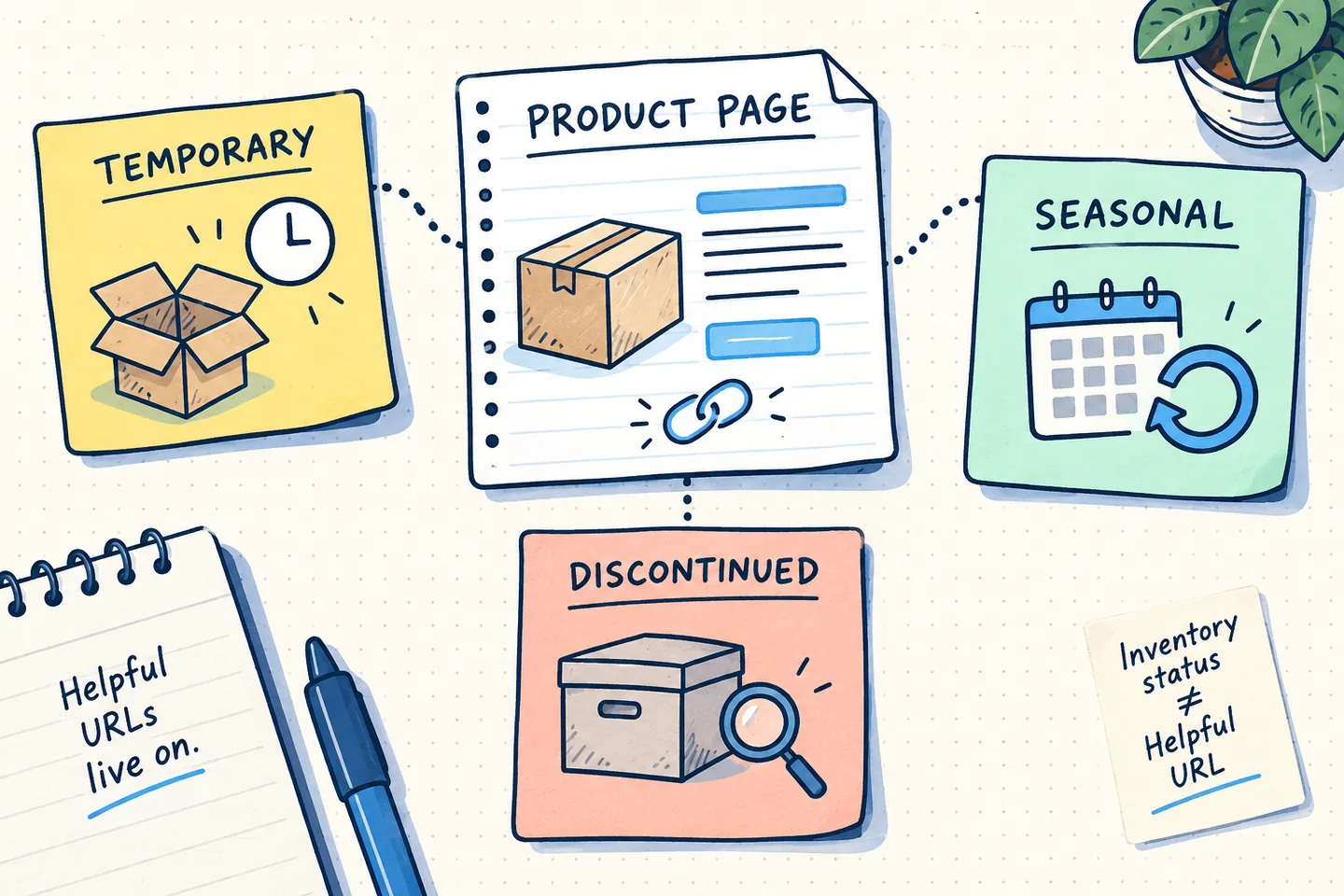
A product sells out. Should its page disappear with it? Usually, the better question is what happens next. A brief supply gap, a seasonal product expected to return and an item that will never be sold again need different treatment. Inventory status tells customers whether they can buy the item; the product URL may still help them identify the item, understand its availability and find a suitable alternative.
For WooCommerce out of stock product SEO, separate three decisions: whether the item appears in catalog listings, whether its public page remains useful and accessible, and what that page tells shoppers and search engines. Changing one does not automatically settle the others.
A stock life cycle decision table
Use the merchant’s actual supply plan as the starting point. If the return date is uncertain, say so; an estimate should never become a promise simply because a product page needs an update.
- Temporary stockout: Show the true stock status. Keep the URL public while the product remains relevant; decide separately whether it belongs in catalog listings. Give a return estimate only when reliable, and offer a comparable in-stock option.
- Seasonal return: Mark the item out of stock between seasons. Usually keep the URL for the returning product, explain the off-season status and distinguish a confirmed return from an expectation.
- Permanent discontinuation: Remove purchase cues and say the item is discontinued. Keep an informative page if it helps visitors; redirect only to a suitable successor. Retire a page that has no remaining purpose.
Catalog visibility is not the same as page availability
WooCommerce separates inventory from presentation. Its product settings documentation describes a store-wide option to hide out-of-stock items from the catalog. That setting changes how unavailable products appear in catalog views; it is not, by itself, a decision to delete each product page or redirect its URL.
The product editor documentation makes the distinction more explicit. A product has stock controls, a publication and public-visibility status, and catalog-visibility choices. Its “Hidden” catalog setting leaves the single product page as the place where the item can be seen. A published, public page therefore needs to be assessed at its own URL, even if the product no longer appears in shop listings.
Check the storefront before applying the store-wide hide option: it may remove useful products from category browsing. A visitor following a saved product URL may still need an explanation and an alternative, even when the item is absent from listings.
When stock is expected back, keep the page useful
A temporary shortage usually calls for an accurate product page, not a new destination. Keep the page’s identity intact so visitors who saved or followed its URL can see what happened. Put the availability message close to the purchase decision, and make sure a disabled purchase action does not look like a broken store. If there is a reliable return window, describe it carefully; if there is none, say that the date is unconfirmed.
Offer a substitute as a choice, not as a silent replacement. A shopper looking for a particular size, specification or compatible part may reject a product that merely looks similar. Name the difference that matters: for example, a different capacity, material or fit. A link to a relevant category can be more useful than a weak one-to-one substitute when several alternatives exist.
Backorders require a separate decision. WooCommerce can allow an order when managed stock is unavailable. Enable that only when the ordering arrangement and customer message are accurate; do not use it merely to retain a buy button.
For a seasonal product, continuity is often valuable. A returning edition of the same product can use its established URL while its page explains the off-season status. Review the page before each season: an old “back soon” line, expired estimate or obsolete alternative is more confusing than a straightforward unavailable notice. If next season’s item is materially different, decide whether it is truly the same product before carrying the old page forward.
Permanent discontinuation is an editorial decision
“Discontinued” does not automatically mean “worthless page.” A product page may still answer questions from past buyers, identify a model or help visitors compare it with a successor. If it does that work well, it can remain public with a clear discontinuation notice and an appropriate path onward. Remove purchase cues that imply the original item is still available.
A redirect makes sense when a particular successor is genuinely the page a visitor meant to reach. It is a poor fit when the destination is a generic category, the home page or a loosely related item. Google describes redirects as a strong signal about which URL should be canonical. Use that signal when the new URL is the intended representative, not as an automatic response to a temporary stockout.
If there is no meaningful successor, decide whether the old page still serves a purpose. Keep it if visitors can learn something useful from it. If it offers no useful information and the item will not return, retire it deliberately and repair internal links that still send shoppers there. The choice should follow the page’s remaining value, rather than a blanket inventory rule applied across the catalog.
Before choosing a successor, compare the details a buyer would use to identify the old item: model, size, compatibility and intended use. If the new product differs materially, leave the old page available long enough to explain the difference, provided it still contains useful information. Point shoppers to the new item as an option rather than implying that it is identical.
Make availability consistent wherever it appears
A page can tell three different stories at once: its visible stock notice, its purchase controls and its structured data. Check all three. Google’s merchant listing documentation includes availability values for an offer, including InStock, OutOfStock, BackOrder and Discontinued. The value served in the page markup should reflect the offer customers actually see.
After a stock change, check the served page, especially if caching or other plugins publish product data. If the visible page says “out of stock” while the offer data still says InStock, updating the editor field has not completed the job. Remove stale purchase controls too.
For variable products, inspect the options a customer can actually select. One unavailable variation need not mean every version is unavailable, while a product that appears generally in stock can still disappoint a shopper whose required option has sold out. The page’s message, selectable variations and availability data should describe the same buying situation.
Verify the served URL after the change
Finish at the public address, not in the admin screen. Open the product URL as a visitor and check whether it loads, redirects or has been removed. Read the availability message, try the variation selector where relevant, inspect the purchase action and follow the proposed substitute. Check a shop or category listing separately to confirm that the chosen catalog-visibility setting behaves as intended.
Then inspect the URL in Search Console. Google’s URL Inspection guidance distinguishes its indexed record from a live test of the current page. Use the live test to investigate what Google can access now, and the indexed record to see the status and Google-selected canonical from its last crawl. A successful live test does not mean the change is already reflected in the index.
When the product returns, restore the correct purchase state, remove stale stockout language and verify the served availability data.